 Creating
Masks - Page 2
Creating
Masks - Page 2
by Jason Mayo :
4
July 2004In the
previous page, you learned how to create a
simple, static mask. This page will explain how to create
two other types of masks.
Animated Masks
The following is an example of how an
animated mask looks:
Here's how to create it:
-
Do the same steps as what was mentioned in
the previous page.
-
Convert the shape on the 'Mask' layer by
going to Modify > Convert to symbol (F8), and naming it
mask and selecting Movie Clip as its behavior.
-
In the time line on both of the layers,
right click on frame 30 and insert a keyframe:
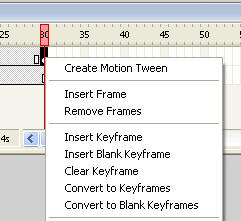
[ insert a
keyframe on frame 30 ]
-
Now click on frame 30 and move your movie
clip to another place on the stage.
-
Now go back to frame 1, right click on it
and choose create motion tween.
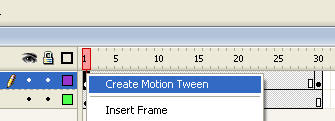
[ create a
motion tween to animate your shape ]
-
Now test your mask by pressing Ctrl +
Enter or by locking both layers.
The final mask I will cover
is the Blurred Edge mask.
Blurred Edge Mask
The following is an example of how an
blurred edge mask looks:
Here's how to create it:
-
Create a mask and masked layer and put a
image on the masked layer and draw a shape on the mask
layer.
-
Insert a new layer between the mask and
the masked layer. You may notice that this will
automatically become a masked layer.
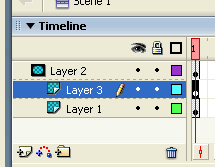
[ the
timeline ]
-
Select the shape you drew before and Copy
it by going to Edit > Copy, now goto the new layer you
have just created which is between the mask and the other
masked layer and goto Edit > Paste in place. This will
paste your shape in the same place as it is on the other
layer.
-
Select the pasted shape and open up the
colour mixer (Shift + F9) if not already open and choose
radial from the drop down menu. There is now
2 little squares either side of a bar.
On the left one click on it and choose white from the
colours palette, and on the right one click on it and
choose
black from the colour palette. Now you need to go back to
the white one and where it says Alpha in the colour mixer
enter or select 0%.
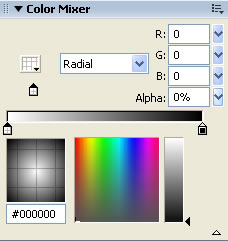
[ the color
mixer ]
-
Now test your mask by pressing Ctrl +
Enter or by locking both layers.
Wala! You now know how to do
basic masking in Flash MX 2004. Hope you found it Useful. If
you need help, please post on the
forums.
Thanks!
|










